

- Log in to the Business Dashboard (production) or staging ↗.
Staging samples
On staging, these addresses return a fixed result so you can try each outcome. Type the address as written. A live key on production treats the same text as a normal address. The price is the rate on your account.Check one address
Open Verifications, then Single. Type the address. Nothing is suggested. Your reference is required. Run fills a reference you can change. Then choose Check address. The result is one message. It shows the status, the note, and the charge. When a field visit is offered, Accept and Decline are on that result. Each one asks you to confirm. The decision cannot be undone. Past checks are on History. Each row shows when the check was created and when it was finished, with the time.Check many addresses
Open Verifications, then Bulk.- Download the template.
- Upload
.xlsx,.xls, or.csv. - Review the rows. A short address, a missing reference, or a repeated reference must be fixed before you can continue. This preview does not charge.
- Confirm. Run shows the wallet balance, the rate, and the total. If the balance is short, fund the wallet first.
Field visits
Open offers stay on Verifications, then Field visits, until you decide. The home banner points there. Accept starts the visit. The wallet must cover the visit price from the available balance. Decline leaves the check as not found and removes the offer.Insights
Insights shows calls, the confirmed rate, spend, and the wallet balance. One date filter covers the checks chart and the confirmed, not confirmed, and unreachable chart. A company that also has Delivery keeps the delivery insights and sees these numbers beside them.Developers
Developers stays the current page. The API key card shows the scopes, includingava:read and ava:write when the company has Address Verification. The webhook card lists ava.verification.completed. A company that only has Address Verification starts with that event selected. A company that also has Delivery keeps the shipment events and can add this one. Webhook deliveries stay on the same deliveries page.
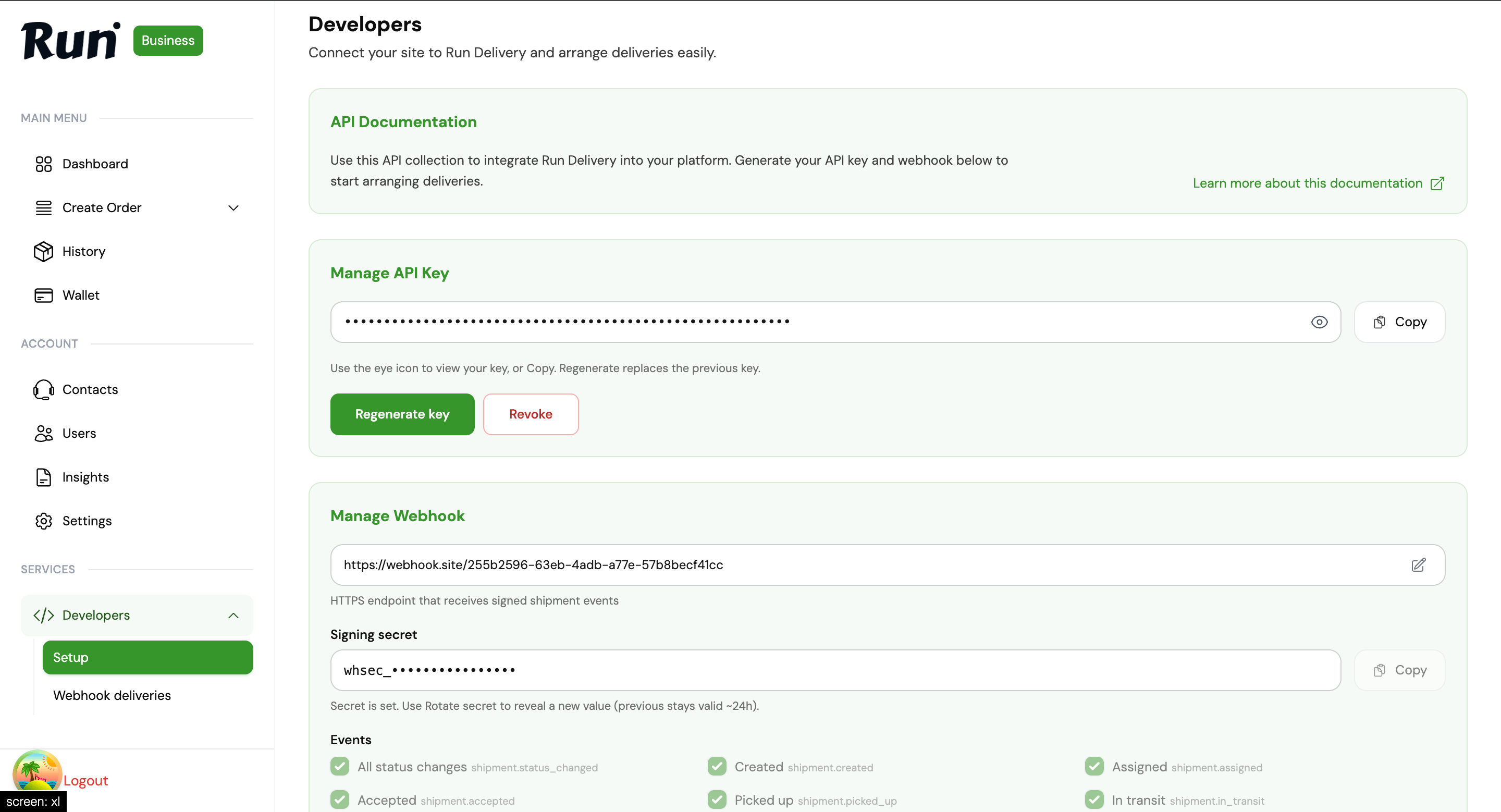
Developers → Setup — API key scopes and webhook events